
Topographic Factors (Mt)
Overview
This guide explains how the topographic factor (Mt) is calculated in SMS when a site location is pinned on the ShedSafe Site Map. Understanding Mt ensures accurate engineering for wind loading based on site elevation changes.

Why this is important
Ensures correct wind loading calculations for site-specific engineering.
Prevents under- or over-engineering by using precise elevation data.
Complies with ShedSafe requirements for structural safety.
How It Works
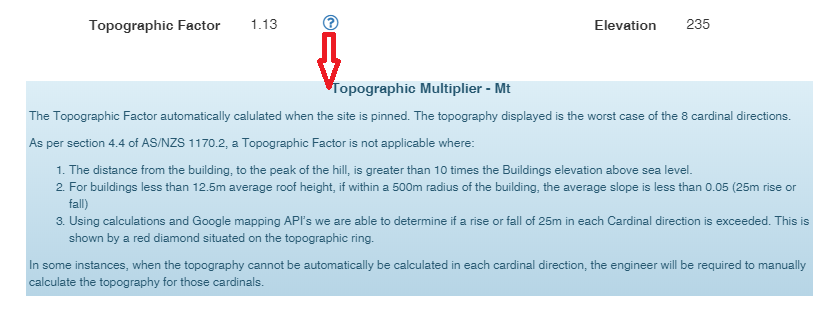
The Topographic Multiplier is calculated only after the site has been pinned.
SMS analyses elevation increases or decreases in all directions from the shed location.
This is why SMS requires the site elevation to calculate the topographic factor.
Viewing Topography
To visualise the topographic range:
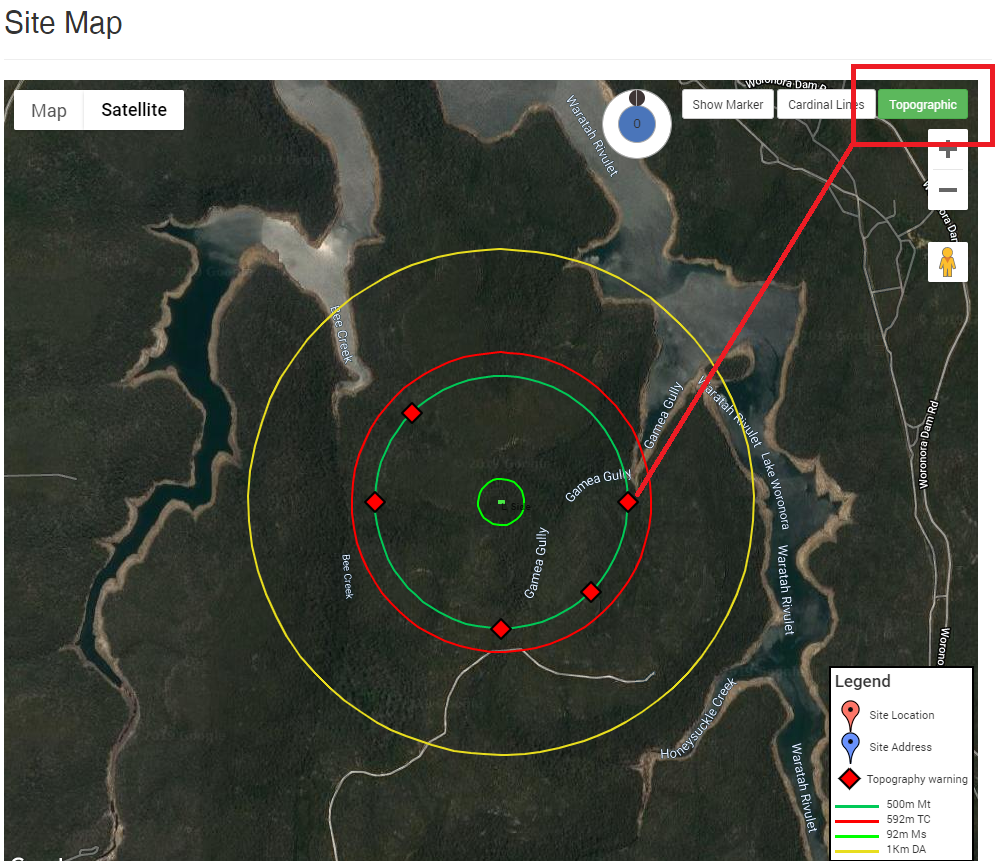
Select the “topographic” button in the top right-hand corner of the site map.
A green circle will appear, outlining the distance over which the elevation increase or decrease is assessed.
Important notes
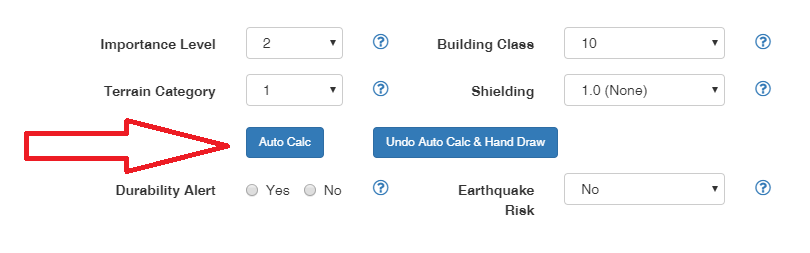
- When you click the “Auto Calc” button, it does not calculate topography.
- Auto Calc is used only for Shielding and Terrain Category.
Topographic Indicators
The topography displayed shows the worst case of the 8 cardinal directions.
If a topographic factor higher than 1.0 is calculated for any of these directions, a red diamond will appear in that direction.
Tips, best practices & troubleshooting
Always pin the site accurately to ensure correct elevation data.
Verify if red diamonds appear – this indicates higher topographic factors that may affect engineering.
Use the green circle display to confirm the radius being analysed.
Related Resources
Request Engineering (Site Check)
Review & updates
Version history:
v1.0 –
v2.0 – 11 Aug 2025
Article information
Category: Engineering & Site Specifications
Target audience: Sales and Engineering Users
Business owner:
Version: v2.0
Last reviewed: 11 Aug 2025